How do I Bill FHO+ Hourly Rate Codes with HYPEMedical?
FHO+ Hourly Rate Codes are billed, for time spent working, servicing your practice.
source: https://www.ontario.ca/document/ohip-infobulletins-2026/bulletin-260309-2024-physician-services-agreement-fho-hourly-rate#section-1
1. Create a Fictitious Patient Record
Use your first hourly-rate claim to create a fictitious patient record. For example, enter:
- Last Name: Hourly
- First Name: Rates
For all future hourly-rate claims, search for Hourly Rates and reuse the same fictitious patient record.
Do not create a new fictitious record each month.
2. Complete the Blue Patient Section
Complete the blue patient section carefully.
Do not enter regular patient demographics, a health card number, or other identifying information. Only enter the fictitious name Hourly Rates, following the example shown below.
FHO+ hourly-rate claims represent the physician’s combined eligible time and must not be linked to an individual patient.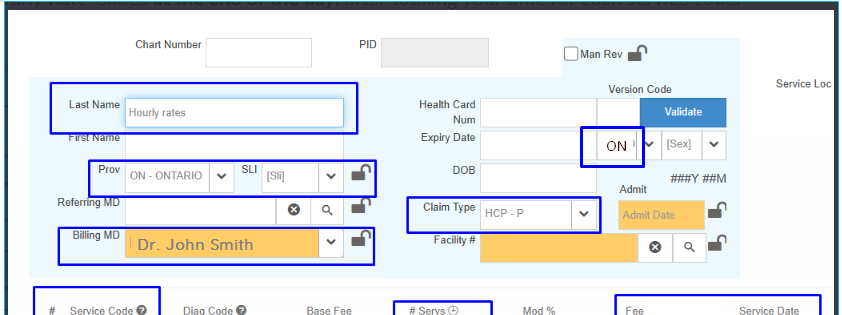
3. Calculate the Eligible Minutes
Hourly-rate claims must be calculated using services provided to eligible rostered patients.
Use the Billing Cycle to review one service date at a time. When reviewing a monthly date range, filter the results by date so that each day can be calculated separately.
Multiply each eligible service by the average number of physician minutes assigned to that service code.
Separate the minutes as follows:
- Q311 – Direct Telephone-Based Patient Care: Eligible K301 services provided while the physician was not in the office.
- Q310 – Direct Patient Care: Eligible in-person and video services, including qualifying K300 and non-K301 services.

Enter the total Q310 and Q311 minutes into the HYPEMedical FHO+ Billing Calculator. The calculator will determine the allowable number of services for Q310, Q311, Q312, and Q313 then continue on to step 6. Or to understand the calculations manually perform steps 4 & 5, next.
4. Manual Calculation of Q312 and Q313
When calculating the claims manually, first total the eligible minutes for:
- Q310 – Direct Patient Care
- Q311 – Direct Telephone-Based Patient Care
The combined Q312 and Q313 minutes may represent no more than 25% of the total eligible hourly-rate time.
Use the following calculation:
- Q312 + Q313 = (Q310 + Q311) ÷ 3
- Divide the resulting Q312 and Q313 total as follows:
- Q313 = (Q312 + Q313) ÷ 5
- Q312 = Q313 × 4
- At the maximum allowable proportion, the total hourly-rate claim consists of:
- Q310 and Q311 combined: 75%
- Q312: 20%
- Q313: 5%
Q312 and Q313 are maximum allowances. Only claim the physician’s actual eligible indirect-care and clinical-administration time.
5. Convert Minutes into Services
Each service represents 15 minutes.
For each hourly-rate code:
Number of Services = Total Eligible Minutes ÷ 15
Round the remaining minutes as follows:
- 8 minutes or more: Round up to the next service.
- 7 minutes or less: Round down.
6. Enter the Hourly-Rate Service Codes
Enter the applicable FHO+ hourly-rate service codes and the calculated number of services:
Q310A
Q311A
Q312A
Q313A
Only include codes for which eligible time is being claimed.
7. Enter the Service Date
Enter the date on which the eligible work was performed.
Treat the entry as a date-based hourly-rate claim representing the physician’s combined eligible time. Do not create separate hourly-rate claims for each patient.
8. Save the Claim
- Click Save.
- Select Save Claim Anyway when the warning appears.
- Click Save again to complete the claim.
Important Notes
- Treat FHO+ hourly-rate claims as daily or monthly total claims, not patient-by-patient claims.
- Do not enter or link a patient health card number.
- Reuse the same fictitious patient record, such as Hourly Rates, for future claims.
- The roster file available under Claims → MCEDT Files → RCP applies to the previous service month.
- When a monthly roster file is used, ensure that the hourly-rate calculations and service dates correspond to the month covered by that roster file.
- Only include physician time related to eligible insured services provided to rostered patients.
- Do not claim the maximum Q312 or Q313 amount unless the physician actually performed that amount of eligible work.
Related Articles
Understanding How To, Manually, Calculate Number Of Services Of FHO+ Hourly Rate Service Codes
How to Bill FHO+ Hourly Rate Codes Source: https://www.ontario.ca/document/ohip-infobulletins-2026/bulletin-260309-2024-physician-services-agreement-fho-hourly-rate#section-1 Quick Answer As of April 1, 2026, FHO+ hourly-rate billing uses four codes: ...Understanding FHO+ Billing Errors (rejection codes)
Hourly rate billing rules The health number, version code and birthdate fields on the claim must be left blank When an hourly code is submitted without a blank health number field the claim will reject 'VHB – No HN required for HSC' When an hourly ...Breaking News: Schedule of Benefits Update — April 1, 2026
NEW Schedule of Benefits SOB Update — April 10, 2026 QuickClaim Users The April 1, 2026 schedule of benefits (SOB) file is now available for download [click here to download]. QuickClaim users can upload the file [click here for instructions] into ...FHO+ Calculator for Ontario Family Physicians
We have integrated an FHO+ calculator into HYPEMedical's latest module: July 2026: HYPEMedical’s Latest Module Automates FHO+ Tracking and Claim Calculations HYPEMedical – Giving Physicians Their Time Back! FHO+ created a valuable new source of ...Manually updating QuickClaim’s service codes (without an SOB file)
Enter the following service codes manually before the SOB is available for downloads: For Example, the FHO Hourly Rate Codes. Entering the new codes, their description and fees: Q310: Direct Patient Care (In Person or Video) ...$20.00 Q311: Direct ...